Secure Wi‑Fi for the Whole Family – How to Protect Kids and Guests Online

Secure Wi‑Fi for the Whole Family – How to Protect Kids and Guests Online
A reliable Wi‑Fi connection is as essential in American homes today as electricity or running water. Parents work remotely, kids stream and play online, and guests expect instant access when they visit. But with this convenience comes responsibility: keeping your network safe from hackers, protecting your family’s privacy, and ensuring children only see age‑appropriate content. Here’s how to make your home Wi‑Fi secure for everyone who uses it.
Start with the Basics – Your Router Is the Heart of the Network
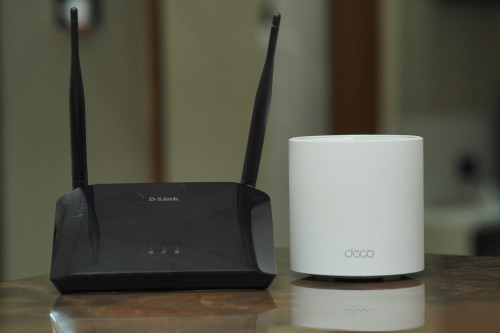
Your router is the control center of your home Wi‑Fi, and it’s where you can make the biggest difference in security. Many people never change the default settings, but that’s one of the most common mistakes.
- Change the default admin password. Use a strong, unique password with a mix of letters, numbers, and symbols.
- Keep your router’s firmware up to date. Manufacturers release updates to fix security flaws—install them regularly.
- Use WPA3 encryption if your router supports it. It’s the most secure standard currently available.
- Turn off remote management unless you have a specific reason to access your router from outside your home.
A few minutes spent on setup can prevent strangers from accessing your network—and your personal devices.
Læs også:
Create a Separate Guest Network
When friends, relatives, or contractors need internet access, it’s tempting to share your main Wi‑Fi password. But that can expose your private network to risk. A guest’s device could unknowingly carry malware that spreads to your computers or smart devices.
The solution is simple: set up a guest network. Most modern routers offer this feature. A guest network provides internet access but keeps visitors’ traffic separate from your family’s devices. You can even set time limits or bandwidth caps so the connection automatically shuts off when guests leave.
Protect Kids with Parental Controls and Filters
Children are naturally curious online, but not all content is suitable for them. Fortunately, there are several ways to create a safer digital environment.
- Enable parental controls on your router or through your internet provider’s app. You can block specific websites or categories such as adult content, gambling, or violence.
- Set time limits for when kids can go online—no Wi‑Fi after bedtime, for example.
- Use child profiles on streaming services, tablets, and gaming consoles to ensure age‑appropriate content.
- Talk with your kids about online safety and privacy. Technology helps, but open communication is the most effective protection.
A secure Wi‑Fi network isn’t just about technology—it’s about building healthy digital habits as a family.
Keep an Eye on Who’s Connected
It’s not always obvious when someone unauthorized is using your Wi‑Fi, but it’s easy to check. Most routers and companion apps show a list of connected devices. Review it regularly and remove any you don’t recognize.
If your internet suddenly slows down or you see unfamiliar device names, it could mean someone has gained access. Change your Wi‑Fi password immediately and consider resetting your router to factory settings.
Use Strong Passwords and Two‑Factor Authentication
Your Wi‑Fi is only as secure as the passwords that protect it. Use unique, complex passwords and avoid reusing them across different accounts. A password manager can help you keep track of them safely.
If your router or internet provider offers two‑factor authentication (2FA), turn it on. This adds an extra layer of security by requiring a verification code—usually sent to your phone—when logging in. Even if someone steals your password, they won’t be able to access your account without that second step.
Keep All Devices Updated
Security doesn’t stop at the router. Every connected device—computers, tablets, smart TVs, and Internet‑of‑Things gadgets like cameras or speakers—can be a potential entry point for hackers. Make sure all devices automatically install software and security updates. Remove old or unused devices that no longer receive updates, as they can become weak links in your network.
Build a Culture of Digital Safety
Technology can protect your home network, but people are often the weakest link. Talk openly with your family about recognizing phishing emails, suspicious links, and unsafe downloads. Encourage kids to ask for help if something online feels off, and remind guests to use the guest network.
A secure Wi‑Fi network is more than a technical setup—it’s part of a responsible digital lifestyle where everyone in the household plays a role in keeping each other safe online.
Læs også: