Get Your Signal Sorted: Apps That Help You Map Your Home Wi‑Fi Coverage

Get Your Signal Sorted: Apps That Help You Map Your Home Wi‑Fi Coverage
A strong and stable Wi‑Fi connection has become as essential as electricity and running water in most American homes. Yet many people still deal with dead zones, weak signals, or slow speeds in certain rooms. The good news? There are plenty of apps that can help you map your Wi‑Fi coverage so you can pinpoint and fix the problem areas. Here’s how to take control of your home network with just a few taps.
Why Map Your Wi‑Fi?
Your Wi‑Fi signal can be affected by walls, furniture, appliances, and even your neighbor’s network. That means even if you’re paying for high‑speed internet, you might not be getting the performance you expect in every corner of your home.
By mapping your Wi‑Fi coverage, you can:
- Identify weak or unstable areas.
- Find the best spot for your router.
- Decide whether you need a Wi‑Fi extender or a mesh system.
- Optimize your channel and frequency settings to reduce interference.
A coverage map gives you a visual overview of how your signal travels through your home—and where it drops off.
Apps That Do the Heavy Lifting
There are several apps that make it easy to analyze and visualize your Wi‑Fi network. Here are some of the most popular and user‑friendly options available in the U.S.
NetSpot (Windows, macOS)
NetSpot is one of the most well‑known Wi‑Fi analysis tools. Walk around your home with your laptop while the app measures signal strength in each area. The results appear as a color‑coded heat map—green for strong coverage, red for weak spots. It’s ideal if you want a detailed overview and don’t mind spending a few minutes setting it up.
WiFi Analyzer (Android)
Simple, free, and effective, WiFi Analyzer shows you the signal strength of all nearby networks and helps you choose the best channel to avoid interference from neighbors. It’s perfect for quick checks and adjustments.
AirPort Utility (iOS)
Apple’s own app includes a built‑in Wi‑Fi scanner that can be enabled in the settings. It gives you a quick look at signal strength and noise levels, helping you spot problem areas. It’s not the most advanced tool, but it’s easy to use and requires no extra equipment.
Ekahau HeatMapper (Windows)
A free tool similar to NetSpot, Ekahau HeatMapper lets you upload a floor plan of your home and walk around while it records signal strength. The result is a clear coverage map showing where your Wi‑Fi could use a boost.
How to Create Your Own Wi‑Fi Map
- Start with a floor plan – use a digital version or a simple sketch of your home.
- Walk around with the app – move from room to room while the app measures signal strength.
- Review the results – most apps display a color map showing strong and weak areas.
- Adjust your router’s position – try placing it in a more central, open location away from walls and metal objects.
- Test again – small changes can make a big difference, so repeat the process until you’re satisfied.
Læs også:



What to Do If Your Signal Is Still Weak
If you’re still having trouble after mapping your network, consider these options:
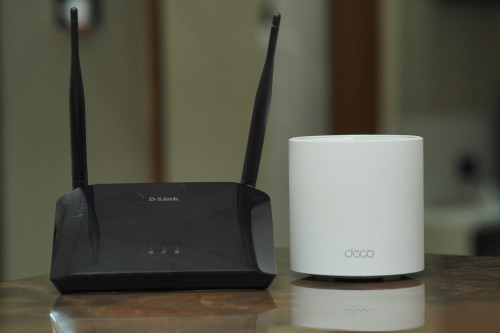
- Mesh Wi‑Fi system: Multiple units work together to cover your entire home seamlessly.
- Wi‑Fi extender: A more affordable way to boost coverage in specific rooms.
- Wired connection: For stationary devices like gaming consoles or desktop PCs, Ethernet is still the most reliable option.
- Upgrade your router: Older models may struggle to keep up with modern speeds and standards.
A Strong Signal Means a Smoother Day
A great Wi‑Fi network isn’t just about speed—it’s about stability and convenience. By mapping and optimizing your coverage, you can eliminate dropped connections and slow downloads. With the right apps, you can take control of your home network—no tech degree required.
Læs også: